
Loudness Equalization Missing in Windows 11? What to Check
Windows controls can differ between playback devices and drivers. Start by checking the actual output you use, especially after swapping headsets or USB adapters.
Quick setup
- Check the output in Settings → System → Sound.
- Open More sound settings, then inspect that device’s properties.
- If the option is missing, compare your game’s dynamic range or try an adjustable Windows tool.
Check the device properties
In Windows Sound settings, open More sound settings, find the active device on Playback, and open Properties. Check for an Enhancements tab and the actual Loudness Equalization option. Seeing an Audio enhancements switch in modern Settings does not tell you which individual effects the device offers.
Try a smaller change on an output without the option
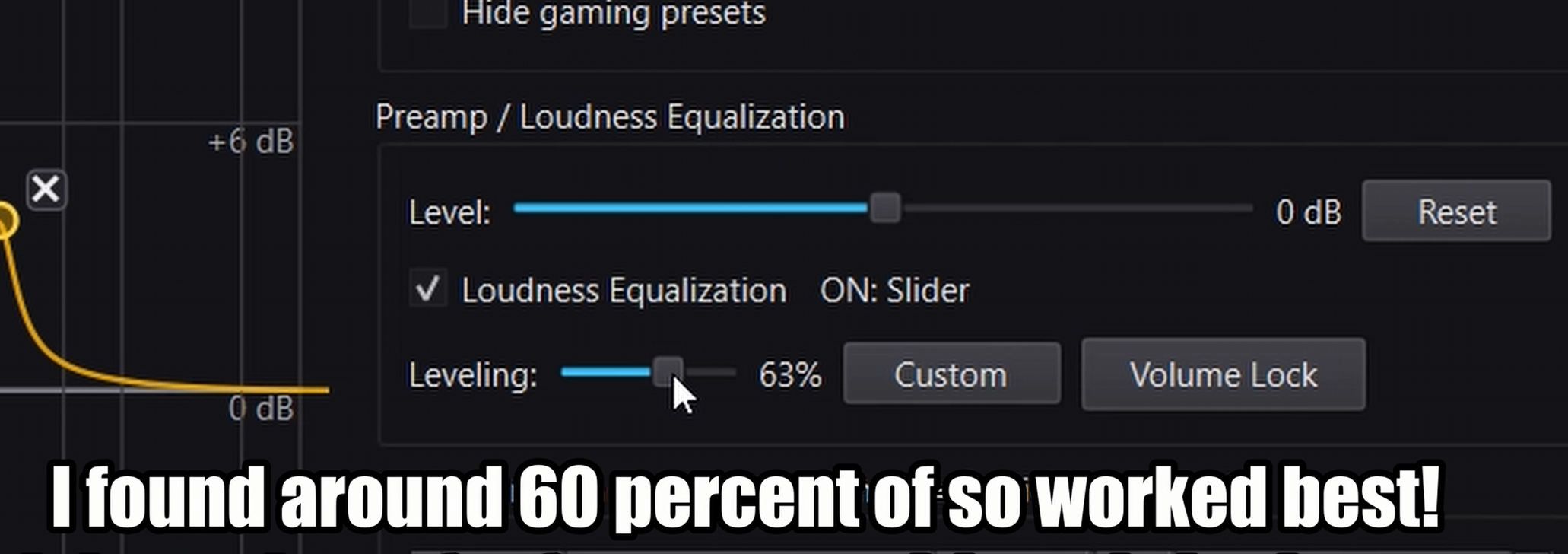
Compare an in-game mix or dynamic range option first if your game offers one. On Windows, DoveSonicEQ includes adjustable Loudness Equalization on a supported output. Start with a light setting and test quiet movement alongside a loud effect at a comfortable listening level.
Check that distance still makes sense
Have a friend repeat the same movement close and far away. If both sound equally near or background noise becomes more distracting, back off the effect. Use the directional hearing test to check that the adjustment helps in practice.
Check the device before you change the driver
A USB DAC, the motherboard headphone jack, and the headset’s Chat endpoint can all show different effects. Play a clip first to identify the output, then open the properties for that exact device. If the feature vanished after a Windows update, compare the current output with the one you used before. Also check whether the device is now using a different driver in Device Manager.
If the Enhancements tab is present but the option is missing, avoid changing a different endpoint or enabling an unrelated effect. Try a game mix first, or use DoveSonicEQ’s own control on a supported output. If DoveSonicEQ also has no audible effect, verify the APO attachment and Audio enhancements state.
DoveSonicEQ for Windows
Get adjustable Loudness Equalization for games
DoveSonicEQ gives you its own Loudness Equalization control on a supported Windows output. Set the amount of quiet-sound lift, load a game preset, and bypass the change to hear what it does to steps and louder effects.
Start light and compare the same nearby and distant steps to see if the extra lift suits your game.
Get DoveSonicEQ
Frequently asked questions
Why is there no Enhancements tab?
The options depend on the playback device and driver. Check the active endpoint, including whether you are using a USB adapter or a separate headset output.
Does EQ do the same thing as Loudness Equalization?
EQ changes frequency balance. Loudness Equalization changes differences in level between quieter and louder sounds.