
How to Hear Footsteps in Any Game on Windows with DoveSonicEQ
Every FPS hides footsteps the same way: explosions, gunfire, vehicles, and music bury the quiet movement cues underneath. This guide gives you one workflow that works in any game on Windows: pick a game preset, match your headphones, shape the EQ yourself, lift what is left with Loudness Equalization, and tame your own gunfire. Each step has an example you can copy.
You need DoveSonicEQ and, for system-wide sound, the free Equalizer APO with DoveSonicEQ's managed setup. Total time: about five minutes the first time, seconds per game after that.
1) Why footsteps vanish in every game
Three things bury steps no matter which game you launch. Masking: deep bass from explosions covers the low body of steps, and midrange chaos covers their texture. Dynamic range: a footstep is whisper-quiet next to a gunshot, so no single volume setting serves both. Your headphones: every model colors the sound differently, so the same game hides steps on one headset and reveals them on another.
Example: in Warzone, a distant explosion rolls deep bass right over the frequency area where footstep weight lives. Turning up the volume raises the explosion too. The fix is never one knob. It is a short stack: preset, headphone match, EQ, Loudness Equalization. The rest of this guide builds exactly that.
2) Step one: load your game's factory preset
Do not start from a flat EQ. DoveSonicEQ ships factory presets tuned per game: Warzone, Valorant, Delta Force, PUBG, CS2, Apex, Rainbow Six Siege, and more. Open Quick Setup, pick gaming, choose your game, and flip the preset against no EQ so you hear exactly what it changes.
Example: load the Warzone preset and stand still in-game while action happens nearby. Flip between the preset and Bypass. You should hear explosions get leaner while movement detail steps forward. If a game ever feels worse with its preset, that is useful information too: keep Bypass handy and trust your ears over any preset name.
3) Step two: match your exact headphones
The same preset sounds different on every headphone because every headphone has its own built-in curve. A bass-heavy headset plus a bassy preset stacks into mud; a bright headset plus the same preset can turn harsh. DoveSonicEQ fixes this with headphone-tuned versions of the game presets: search your model, and if a tuned version exists, try it next.
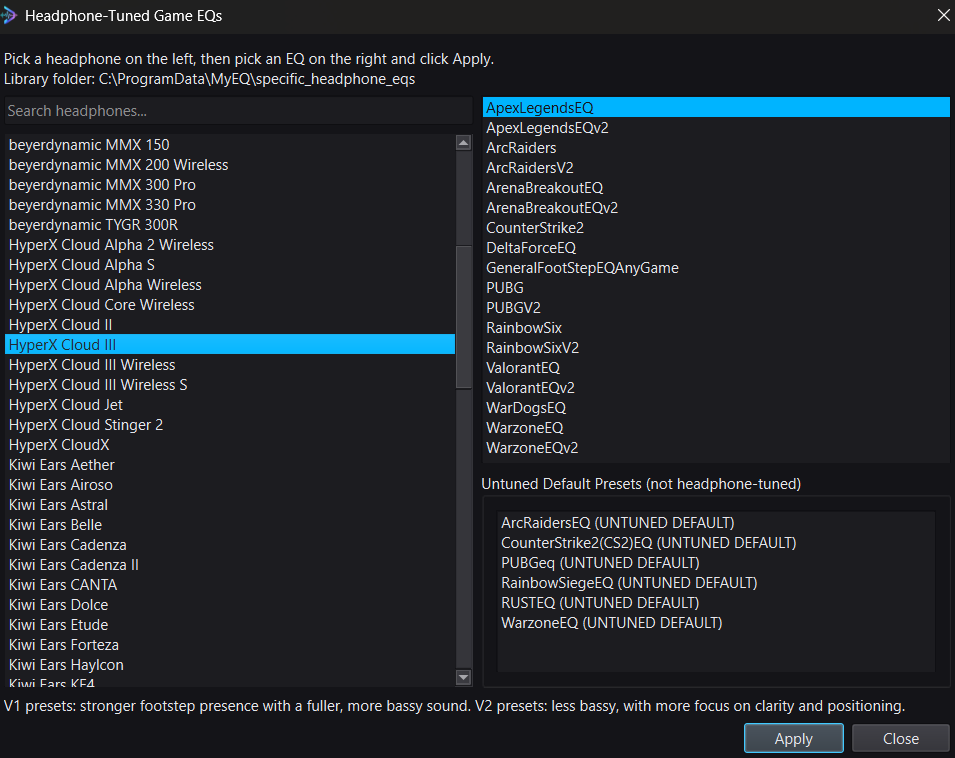
Example: a HyperX Cloud III owner loads the factory Warzone preset, then switches to the Cloud III tuned version of it. Same game mix, corrected for those ears. If your exact model has no tuned version yet, the factory preset plus the EQ moves in the next section get you there manually.
4) Step three: shape it yourself (three moves)
You only need three moves on the visual EQ graph. Click to add a control point, drag to tune, and listen after every move:
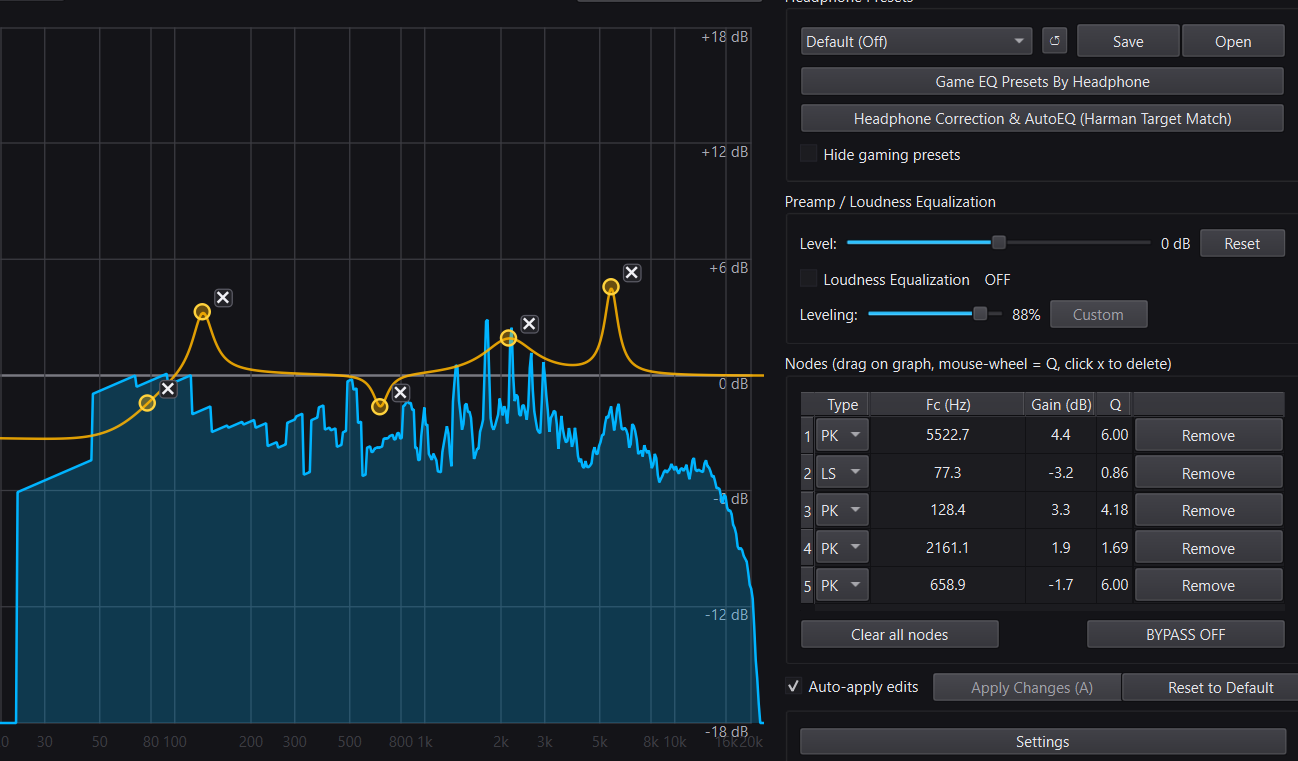
- Cut deep bass: pull down the far left, roughly below 100 Hz. Example: a low shelf cut here leans out explosions and vehicle hum so they stop covering step weight.
- Lift step body: raise the low-mids a few dB where footstep weight and impact live. Example: if steps sound thin after the bass cut, a gentle bump here brings back their thump without restoring the rumble.
- Lift step detail: raise the upper mids a few dB where texture, gear rustle, and reload clicks sit. Example: if you hear thumps but cannot tell direction or surface, this is the range that adds that information.
Small moves beat big ones. A few dB in the right place beats a dramatic curve that fatigues you in twenty minutes. After every move, flip Bypass: if you cannot hear the improvement blind, undo it.
5) Step four: lift quiet steps with Loudness Equalization
EQ reshapes frequencies; Loudness Equalization reshapes levels over time. Improved Loudness watches your game and gently raises quiet material like footsteps so they survive loud action. Start at 50%; most gaming setups settle near 48%. Raise it until distant steps surface, then stop: if everything feels equally loud and flat, back down until distance returns.
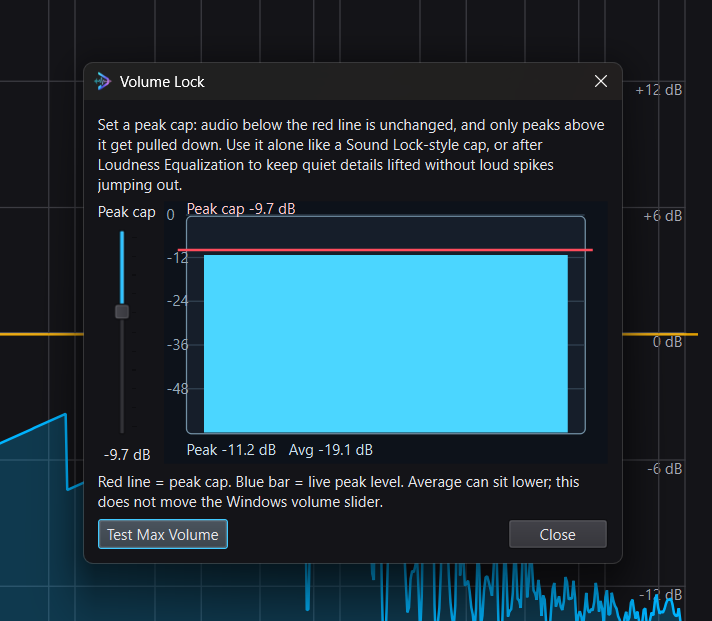
- Peak Control lives inside Improved Loudness and catches sharp spikes only. It never boosts, so it cannot make quiet problems louder.
- Volume Lock is a separate final cap. Add it when spikes still bother you or for late-night sessions.
- Order: Loudness Equalization lift, then Peak Control, then Volume Lock.
6) Step five: tame your own gunfire (if it buries steps)
If your own shots are the specific thing covering steps, no amount of EQ or Loudness Equalization will fully fix it: the shot is simply louder than everything else at the moment it fires. Lower Own Gunfire turns your centered self-sounds down while leaving outer cues alone. Start with fire-aware V3 near 50% strength and test in the built-in firing range. Full walkthrough: how to lower your own gunfire volume.
7) Prove it, save it, ask Dove
- Bypass compare the finished setup against untouched sound before you trust it.
- Loop the moment with Audio Loops and solo the step range with frequency isolation while you fine-tune.
- Save one preset per game: EQ, headphone match, gunfire control, and Loudness Equalization travel together. Swap instantly next launch.
- Stuck? Ask Dove: describe what you hear in plain words and the Dove AI assistant adjusts the setup, or checks your Equalizer APO chain if you hear no change at all.
DoveSonicEQ
Game presets, headphone-tuned versions, visual EQ, Loudness Equalization tools, Lower Own Gunfire, and Dove AI help in one Windows app.
View DoveSonicEQSoundSight
If you also want to see footsteps, SoundSight draws left/right direction visually while you play.
View SoundSightTroubleshooting
Steps are louder but I cannot tell direction anymore
That is usually over-leveling flattening your distance cues. Lower Improved Loudness a few points until direction returns, then compare with Bypass.
Everything sounds thin after my EQ moves
You cut bass without restoring step body. Ease off the deep cut, add a little low-mid back, and check against Bypass after each move.
My own shots still drown everything out
That is a job for Lower Own Gunfire, not more EQ or Loudness Equalization. Switch it on near 50% strength and test in the firing range.
I hear no change at all
Almost always setup: Equalizer APO must be attached to the Windows playback device you actually use, with DoveSonicEQ's managed include in place. Ask Dove AI to check the chain, or re-run the Configurator on your device and reboot once.
FAQ
Does this work in any game?
Yes. The workflow is the same everywhere because it runs on your Windows audio output: factory preset for the game, headphone match, small EQ moves, Loudness Equalization lift, gunfire control if needed. Game-specific guides fine-tune the details per title.
Do I need to know frequencies?
No. Drag points on the live graph and listen, or skip manual EQ entirely: presets, headphone matching, Quick Setup, and Dove AI cover the whole workflow in plain words.
Will this help on speakers or earbuds too?
Yes, though headphones give the clearest footstep direction. The same stack applies; you may want gentler boosts on small drivers.
Can one preset work for music as well?
Save separately. Gaming setups chase footsteps; music setups chase neutral tone. Search your headphone model and match a neutral target for music listening.