
Best Valorant Audio Settings & EQ to Hear Footsteps (2026)
Footsteps in Valorant are some of the most important sounds in a round. The right in-game setting preserves directional information, while a targeted EQ helps the texture and detail of enemy movement stand out from abilities, gunfire, and the rest of the mix.
This guide covers the best Valorant audio settings, the exact Valorant footstep EQ preset, and a practical Loudness Equalization range. You can download the preset for free or apply it, analyze the game in real time, and refine it for your headphones directly with DoveSonicEQ.
1) Best Valorant audio settings
Turn HRTF On. It improves positional rendering over headphones, making it easier to judge where footsteps and other important sounds are coming from. Avoid stacking it with another virtual-surround or spatial-audio effect in Windows or your headset software.
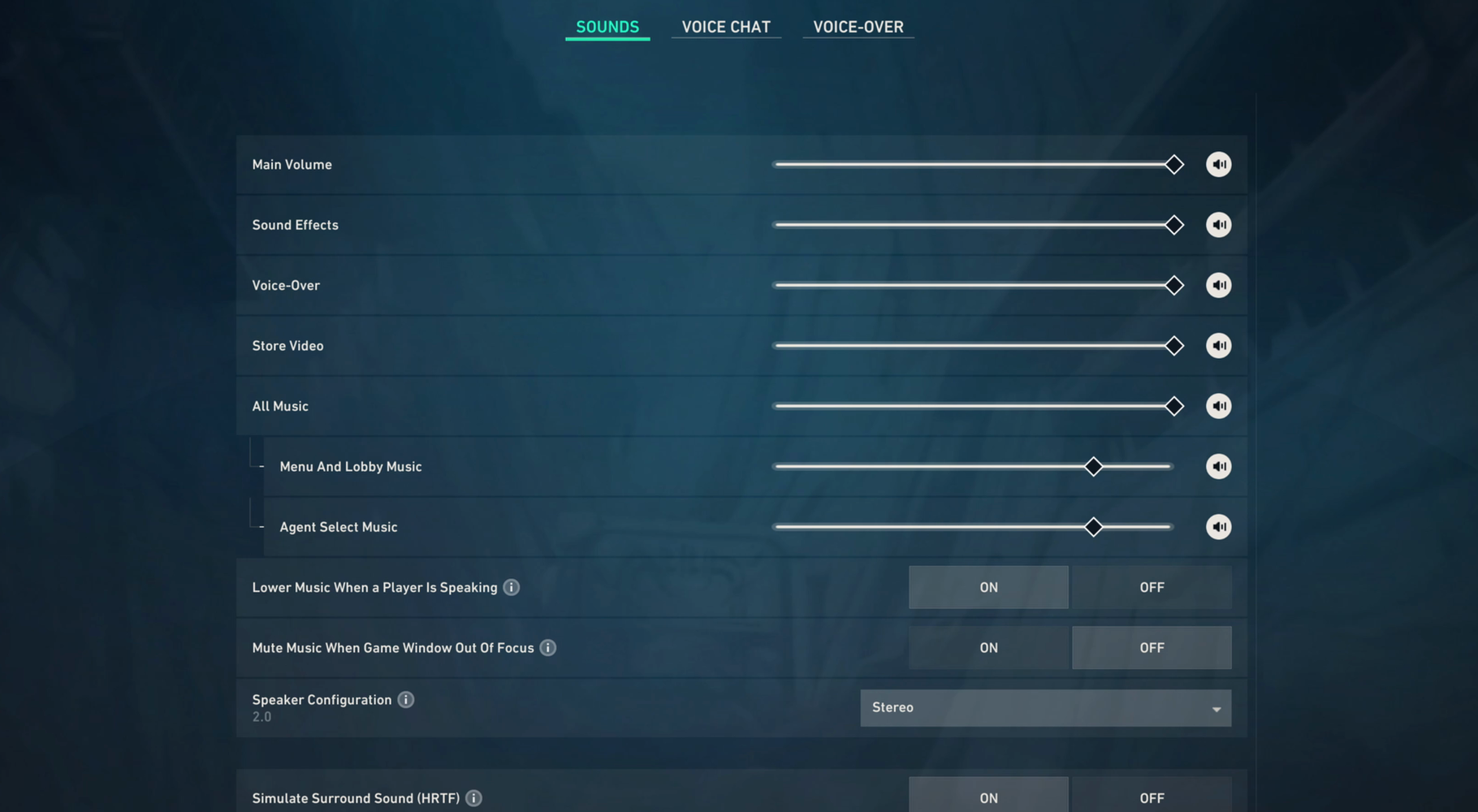
- HRTF: On
- Sound Effects Volume: High
- Voice-over Volume: Lower it slightly if callouts cover movement
- Music Overall Volume: Low or Off
- Menu and Agent Select Music: Low or Off
Keep one positional-audio system active and reduce audio that does not help during a round. The goal is to preserve direction and distance while leaving space for footsteps, reloads, abilities, and useful callouts.
2) Footstep frequencies in Valorant
Valorant footsteps carry useful information across the lows, mids, and upper mids. The lower ranges give each step body, while the upper ranges contain much of the texture and fine detail that helps movement cut through the rest of the game.
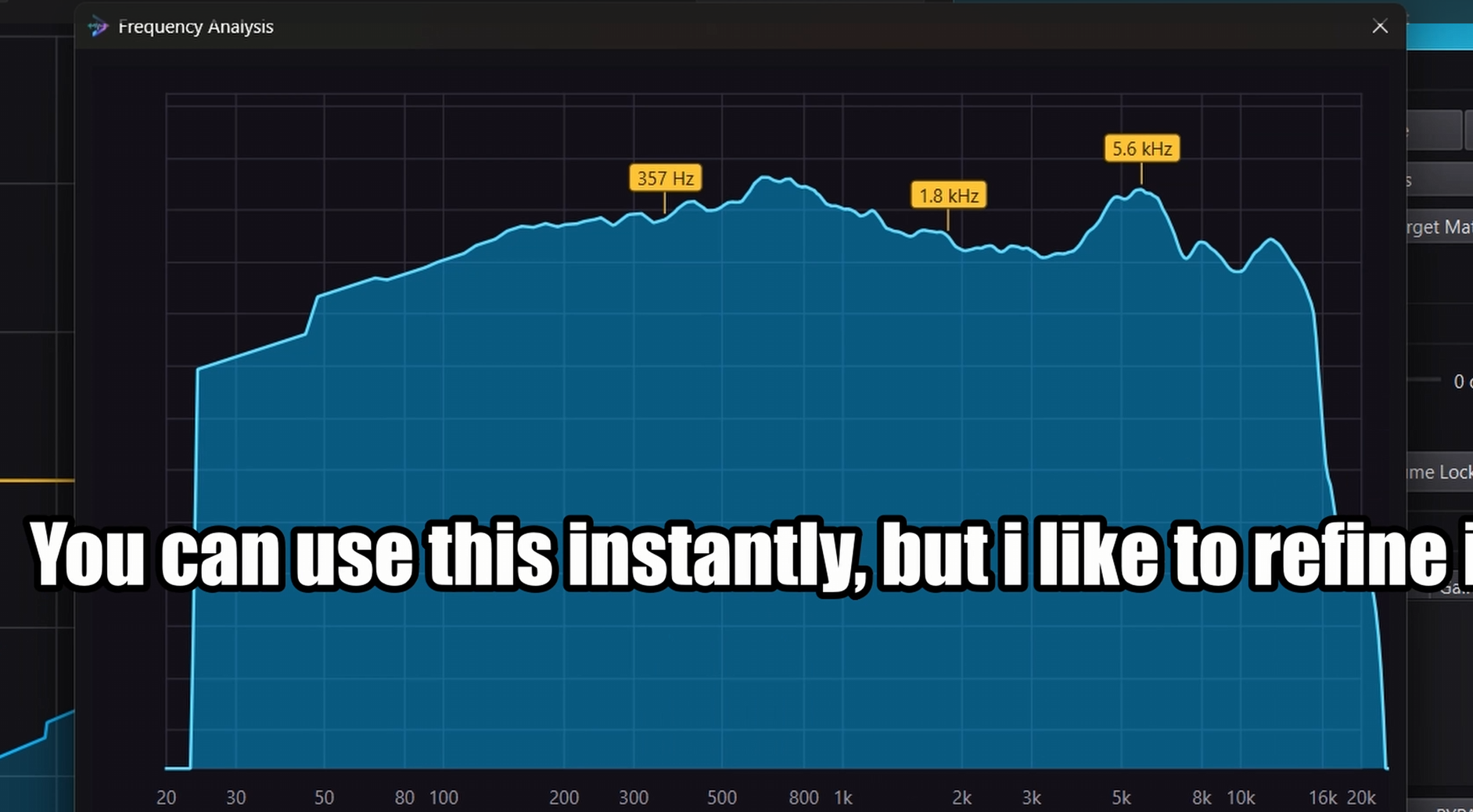
- Around 125 Hz: low footstep weight
- Around 720 Hz: midrange presence
- Around 2 kHz: clarity and movement definition
- Around 4.6-6.2 kHz: texture and finer footstep detail
- Very low bass: reduce it so deep energy does not mask useful cues
That is why this preset does not rely on one broad treble boost. It clears deep low-end energy, adds controlled body and presence, and then brings forward the sharper detail that makes footsteps easier to recognize.
3) Best Valorant EQ preset for footsteps
This preset was created by analyzing a range of Valorant footsteps with DoveSonicEQ's live spectrum and then testing the result by ear. Use it as a strong general starting point; small adjustments may still help with unusually bass-heavy or bright headphones.
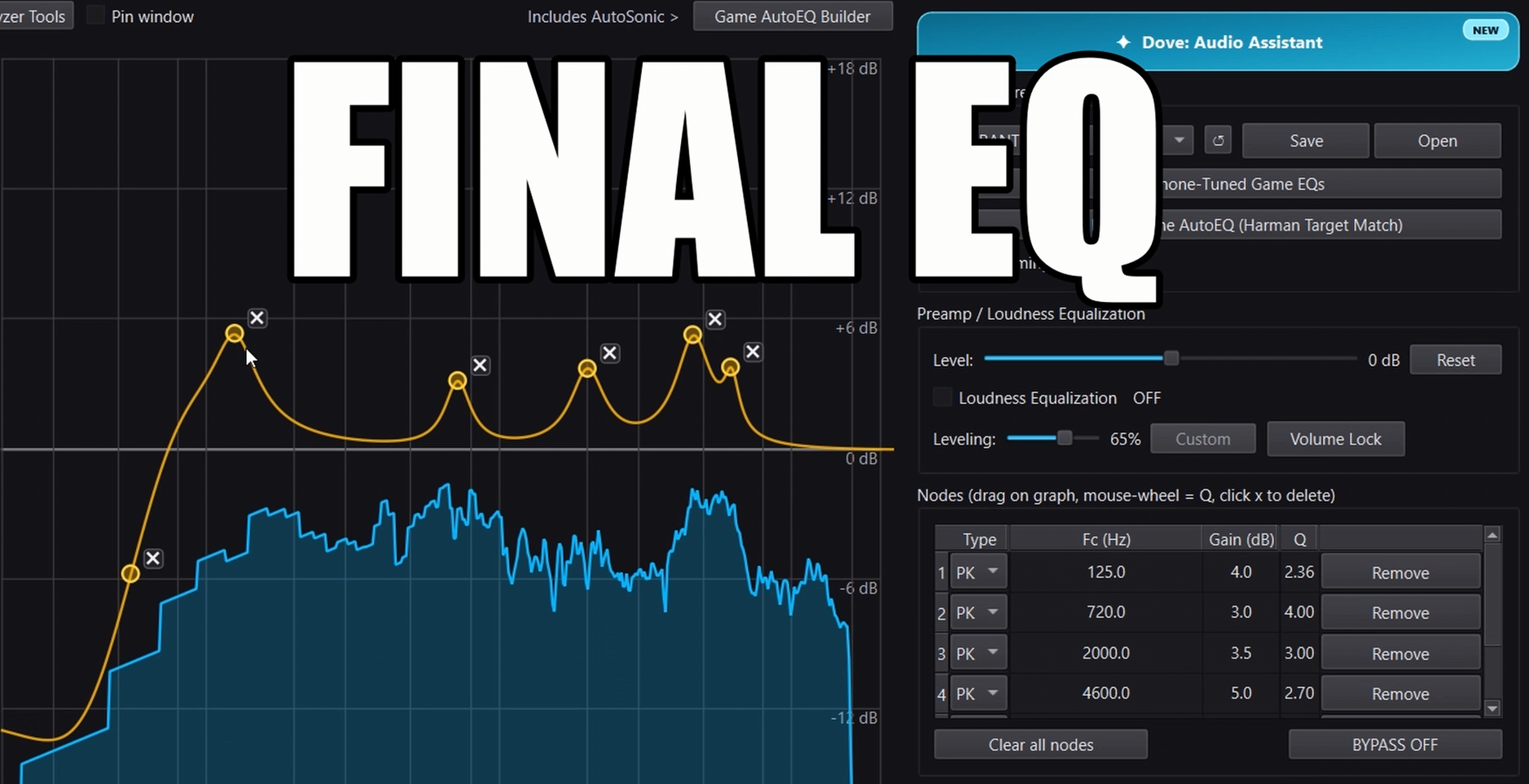
Valorant Footstep EQ
- 55 Hz low shelf: -12.0 dB, Q 1.17
- 125 Hz: +4.0 dB, Q 2.36
- 720 Hz: +3.0 dB, Q 4.00
- 2000 Hz: +3.5 dB, Q 3.00
- 4600 Hz: +5.0 dB, Q 2.70
- 6200 Hz: +2.5 dB, Q 6.00
The 55 Hz shelf reduces deep low-end energy that is not helping with footsteps. The 125 Hz and 720 Hz boosts reinforce weight and presence, while the controlled boosts from 2-6.2 kHz bring out the texture and finer details of movement.
4) How to apply the Valorant EQ
Use DoveSonicEQ for the complete setup
DoveSonicEQ includes the Valorant preset, a live spectrum and editable EQ, built-in Loudness Equalization, headphone-specific game presets, and the Dove AI assistant for creating or refining a curve from your listening feedback.
- Open DoveSonicEQ and select the Valorant preset
- Choose a headphone-specific Valorant version if one is available for your model
- Apply the preset and test it during real gameplay
- Use the live analyzer or Dove AI assistant for small refinements
- Keep enough headroom and lower strong boosts if your audio clips
Use the free preset in DoveSonicEQ
Download the free preset above and import it directly into DoveSonicEQ. It gives you the Valorant preset, headphone-specific choices, live analysis, AI refinement, and Loudness Equalization together in one app.
5) Best Loudness Equalization setting for Valorant
Loudness Equalization raises quieter sounds while controlling louder peaks. For Valorant, 50-70% is a useful range, with 60% as a strong starting point for bringing up quieter and more distant footsteps without completely flattening the sense of distance.
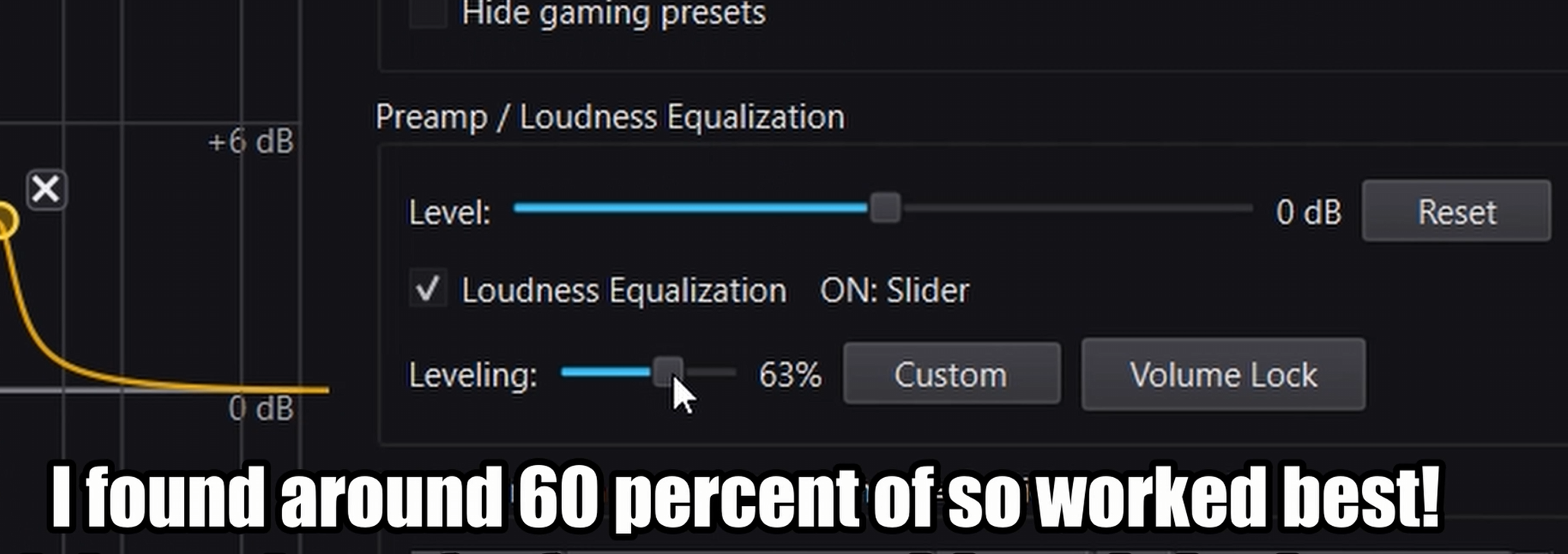
- Start at 60%
- Increase toward 70% if distant movement remains too quiet
- Reduce toward 50% if nearby and distant sounds feel too similar
- Combine it with the EQ preset instead of using maximum compression
DoveSonicEQ includes Loudness Equalization as a built-in slider, so you can compare the EQ alone against the EQ plus loudness processing without leaving the app.
FAQ
Should HRTF be on in Valorant?
Yes, when you are using headphones. HRTF improves positional rendering, but avoid stacking it with Windows spatial audio or another virtual-surround effect.
Does EQ help footsteps in Valorant?
Yes. EQ can reduce unnecessary deep bass and emphasize the low, mid, and upper-mid ranges that carry footstep weight, presence, and texture. It cannot replace positioning or game sense, but it can make useful movement cues easier to notice.
Should Loudness Equalization be at 100%?
Usually no. Maximum compression can make distant and nearby sounds feel too similar. Start around 60% and adjust within the 50-70% range based on how well you can still judge distance.
Why use DoveSonicEQ for Valorant?
DoveSonicEQ combines the Valorant EQ, headphone-specific preset options, real-time analysis, Loudness Equalization, and Dove AI-assisted refinement in one workflow. Download the free preset above and open it in DoveSonicEQ to get started.