
Quick start (approx.3 minutes)
- (Recommended for system-wide EQ) If prompted, install Equalizer APO using the in-app helper. This lets NodeEQ affect all system audio. You can still use NodeEQ to analyze sound and design presets without it.
- Open NodeEQ and start playing any sound (game audio, music, footsteps, or voices).
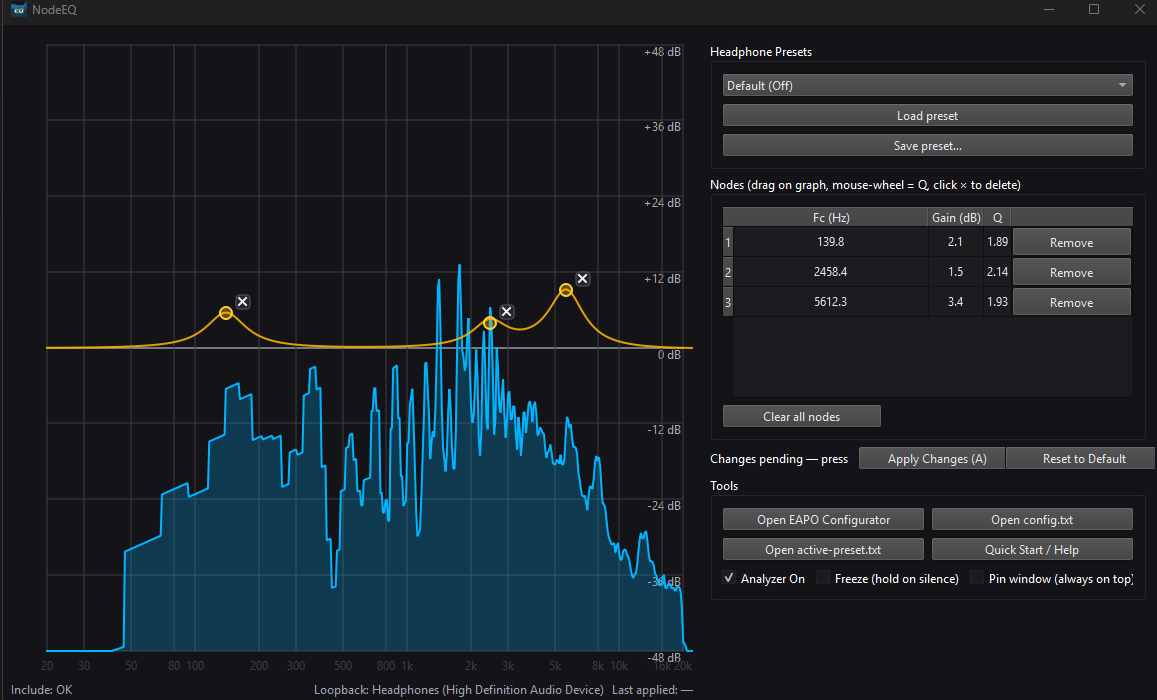
- Turn on the Analyzer to see the sound’s frequencies moving in real time.
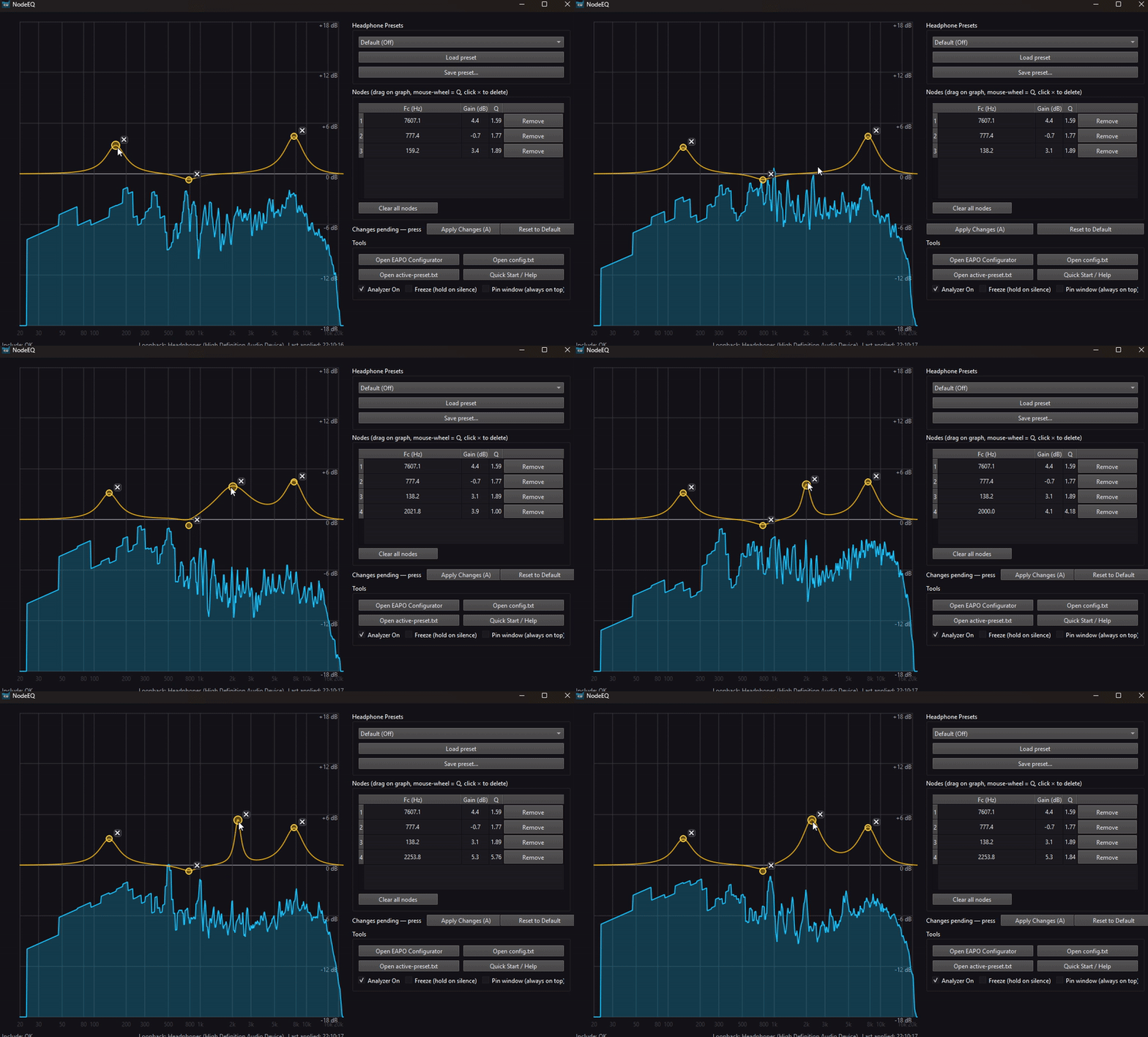
- Click anywhere on the graph to add a point, then drag it up to make that part of the sound louder or down to make it quieter.
- If Equalizer APO is installed, click Apply Changes (or press A) to hear the result system-wide.
- When it sounds good, click Save preset… so you can reuse it later.
Controls & gestures
- Add a band: click anywhere on the spectrum
- Move a band: drag (frequency & gain)
- Change width (Q): mouse wheel over a node
- Delete band: click the small × near a node / right-click → Delete / Delete
- Apply to system: A (or Apply Changes)
- Analyzer On: live spectrum visualization
- Freeze: hold the last strong frame during silence to inspect it
- Pin window: keeps NodeEQ always on top
Suggested workflow
- Play the sound you want to tune (for example: footsteps, voices, music, or game ambience).
- Turn on the Analyzer to see the frequencies of that sound in real time. Louder or more dominant parts of the sound will show up as higher peaks.
-
Click on the graph to add a point, then drag it:
- Left / right = which frequency you are changing
- Up / down = louder or quieter
- Boost the frequencies you want to hear more clearly (for example footsteps or voices), and lower frequencies you find distracting (such as rumble or harsh background noise).
- If Equalizer APO is installed, click Apply Changes (or press A) to hear the changes system-wide.
- When it sounds good, use Save preset… so you can load it again later.
Presets
- Built-in Headphone Presets are installed on first run. Load one, then tweak nodes.
- Save preset… writes a portable text file (Equalizer APO compatible).
- Up to 5 bands are supported. Prefer multiple gentle bands over one extreme boost.
Tools & setup helpers
- Open EAPO Configurator — enable your playback device & restart
- Open config.txt & active-preset.txt — for advanced edits or backup
- Quick Start / Help — in-app walkthrough
Tuning tips
- Use the live spectrum to spot broad problems (boomy bass, harsh highs) and place gentle cuts first.
- Wider Q sounds more natural; narrow Q for surgical fixes.
- Target “listening comfort” first, then micro-adjust for detail.
Troubleshooting
- No effect? Ensure Equalizer APO is installed and your playback device is enabled in Configurator; reboot once after enabling.
- Analyzer shows but EQ doesn’t apply? Use the helper to re-include APO config or re-select the device.
- High latency? Lower the device buffer or disable other processors in your chain.
System-wide: NodeEQ adjusts your system output, so it works with any headphones — wired, Bluetooth, or USB DAC.