
Quick start (approx.2 minutes)
- Run SoundSight.exe — capture starts automatically.
- Open Settings and leave Footstep Focus on for the best starting point.
- Set Listen to either All Audio (system mix) or your game/app window for cleaner radar results.
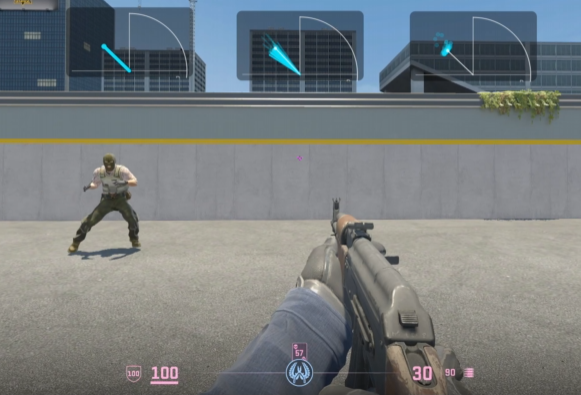
- Try Petals first, then tap 1 / 2 / 3 / 4 / 5 to compare all five render modes.
- Press O to enter Overlay mode. It becomes frameless, translucent, and auto-pins on top. Press C if you want click-through.
- If footsteps still feel faint, try the Balanced, Tighter, or Wider footstep presets before reaching for Boost.
Controls & hotkeys
- Modes: 1..5 — Petals / Dots / Comet / Solid Fan / Single Line
- Boost: B — visual-only rim push for very quiet cues
- Trail life: [ / ]
- Opacity: - / =
- Pin on top: P
- Overlay mode: O
- Click-through overlay: C
- Restart capture: R
- Help: Shift + ?
Mode cheat sheet
- Petals (default): crisp spokes and the fastest read for footsteps or short bursts.
- Dots: lighter visual load if you want the radar to stay subtle.
- Comet: smoother motion trail for tracking movement over a little more time.
- Solid Fan: filled wedge that makes overall intensity easier to read.
- Single Line: only the newest cue, shown as a thick colored pointer for the cleanest possible view.
Listen modes
- All Audio (system mix) listens to everything playing through your default Windows device.
- Single app/window focuses the radar on one visible program on Windows, which can reduce clutter from Discord, browser tabs, music, or desktop sounds.
- If single-app capture is unavailable, SoundSight automatically falls back to All Audio instead of failing completely.
Tuning hints
Trail Life
- 0.1-0.35 s — snappier and great for competitive FPS footsteps.
- 0.4-0.6 s — easier to read if you want slightly more visual history.
Noise Gate acts like sensitivity control. Raise it if idle ambience, AC noise, or game hum keeps flickering the radar. Lower it if quiet footsteps are not appearing enough.
Radius Boost makes cues reach farther overall. It is useful on quieter mixes or low-volume setups.
Boost is visual-only. Try Footstep Focus and the presets first. Use Boost only when footsteps are still tiny, because it can also make quiet ambient sounds look larger.
Footstep Focus
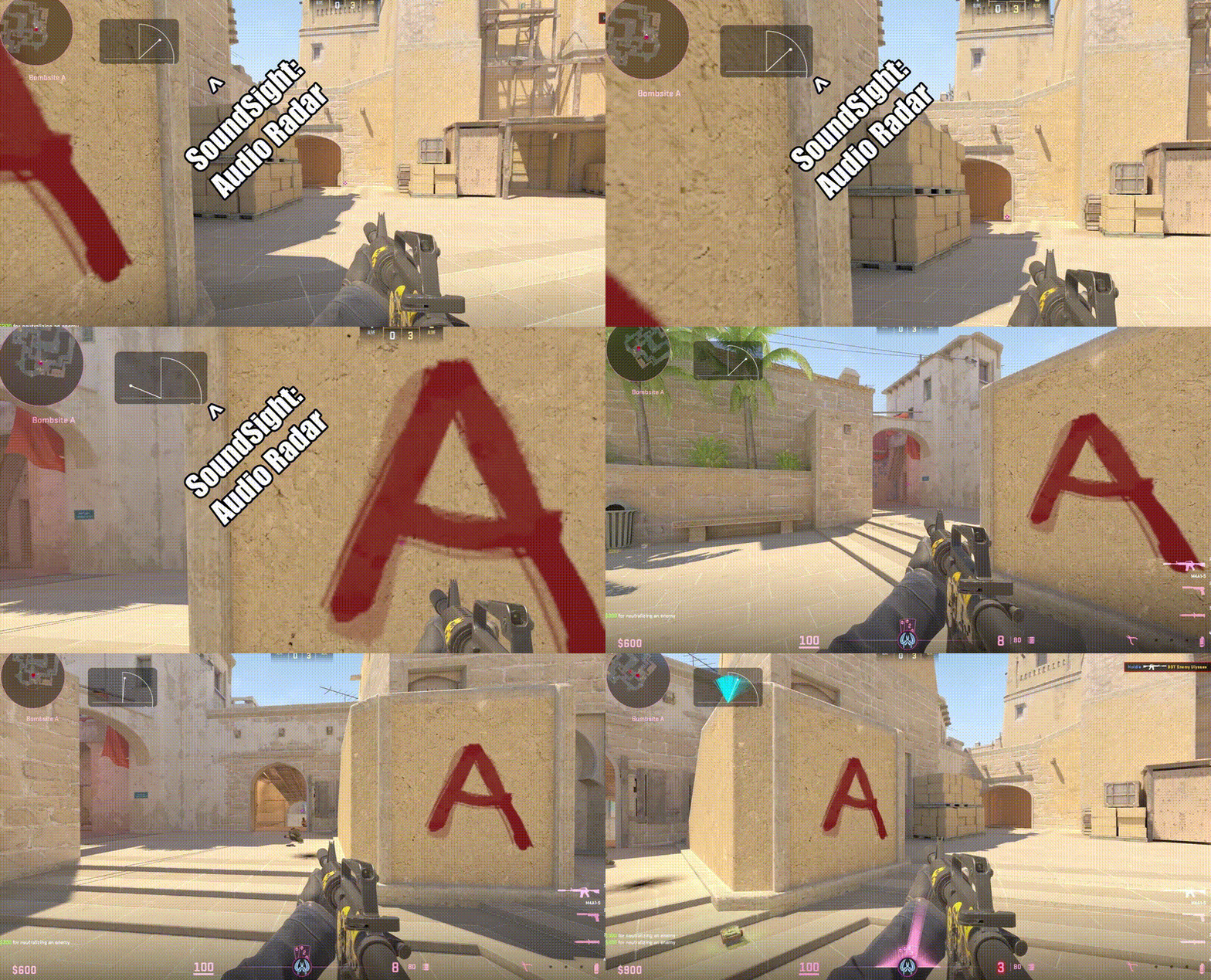
Footstep Focus is the main new SoundSight mode and the recommended default. Instead of treating every sound equally, it looks for footstep-like transients first, then uses a higher band to estimate direction more cleanly. In practice, that means footsteps stay readable without the radar being overwhelmed by constant ambience.
- Balanced — best default for most games.
- Tighter — less ambient clutter, more selective, but may miss very quiet or distant steps.
- Wider — more sensitive with more coverage, but can pick up more non-footstep sounds.
- Turn Footstep Focus off only if you want the classic all sounds view.
General tips
- Use headphones for the clearest left/right directional read.
- Read the radar like this: the arc is forward, angle is left/right, and radius is how strong the cue looks.
- Different games and maps are mixed differently, so it is normal to retune Noise Gate or presets per game.
- Exclusive fullscreen can hide overlays. Switch the game to borderless windowed if the radar disappears.
- Make sure your game is outputting to the Windows Default playback device.
Troubleshooting
- No movement? Check that your headphones/speakers are the Windows Default output device.
- Too much clutter? Keep Footstep Focus enabled, try the Tighter preset, raise Noise Gate, or switch Listen to from All Audio to your game only.
- Quiet footsteps not showing? Lower Noise Gate, try the Wider preset, then add a little Radius Boost.
- Overlay missing in-game? Use borderless windowed instead of exclusive fullscreen.
- Overlay blocking clicks? Turn on click-through with C.
- Audio device changed mid-game? Press R to restart capture.
- Still stuck? Check
errorlog.txtnext to the EXE for capture hints.