
How to Lower Your Own Gunfire Volume in Games (Keep Footsteps Clear)
Your own first-person shots are the loudest thing in your mix. They are loud, centered, and constant, so they cover up the quieter sounds around you: enemy footsteps, reloads, and callouts. The goal of this guide is simple: turn your own gunfire down while keeping everything else exactly where you can hear it.
The fix is DoveSonicEQ Lower Own Gunfire (Center Relief beta), paired with a small loudness lift for quiet steps. It works on your Windows audio output, so it applies in any FPS: Warzone, Valorant, CS2, PUBG, Apex, R6, Delta Force, and more.
1) Why your own gunfire buries footsteps
First-person gunfire is mixed to feel powerful: a sharp centered transient with a heavy body behind it. Your ears (and any compressor or limiter in the chain) react to the loudest event, so for a split second after every shot, quieter sounds like footsteps, gear movement, and distant callouts get pushed down or masked completely.
Turning your overall volume down does not fix the balance. It makes steps quieter too. The real fix is selective: turn down only your own centered self-sounds and leave outer directional cues alone.
2) The fix: Lower Own Gunfire (Center Relief beta)
Lower Own Gunfire watches for your own shots and similar centered self-sounds, then turns just those down. Footsteps, enemy gunfire from the sides, and voice callouts keep their level because they do not match the centered self-sound pattern.
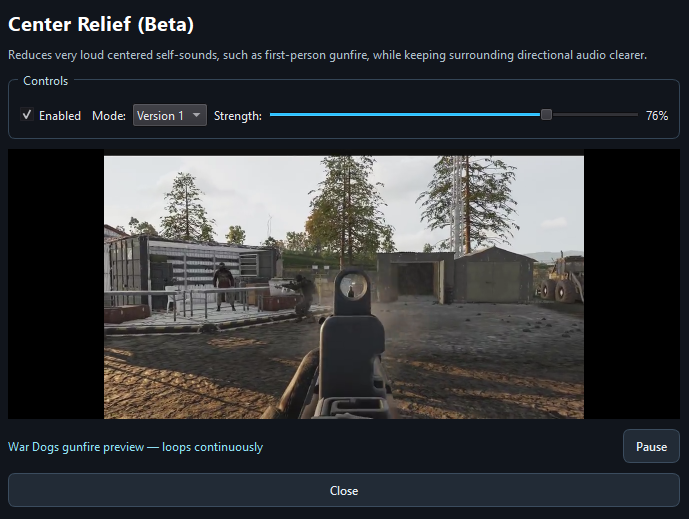
Version 3 fire-aware (recommended)
- Uses your fire-button click plus game audio together, so it knows a shot is yours instead of guessing from sound alone.
- Best in real matches, where ambient chaos can fool audio-only detection.
- Test it in the built-in firing range, which runs the real active processing chain, so what you hear there matches the game.
Version 1 original (fallback)
- Listens to audio only, with no fire-button signal.
- Try it if V3 ever feels off in your game or setup.
Strength: start near 50%
Strength controls how far your own shots drop. Start near 50%, fire a few bursts in the firing range, and move it until shots still feel strong but steps stay audible underneath. There is no universal perfect value: louder game mixes and bass-heavy headphones usually want a little more.
3) Pair it: lift steps, cap spikes
Lower Own Gunfire handles your shots. Two more controls finish the job on everything else, and they stack in this order:
- Improved Loudness near 48-50%: lifts quiet footsteps and details out of the mix with one slider.
- Peak Control: lives inside Improved Loudness and gently catches sharp spikes from explosions or remaining gunshots. It only turns peaks down, never boosts.
- Volume Lock: a separate final cap on overall loudness. Use it alone or after the loudness lift.
If everything starts sounding equally loud and flat, back the loudness percentage down first. Distance cues live in dynamics, so the goal is steps you can hear, not a wall of equal-volume sound.
4) Set it up in DoveSonicEQ (about a minute)
- Open DoveSonicEQ and run Quick Setup: pick gaming, load your game's factory preset, and compare it against no EQ.
- Search for your headphone model and try the tuned headphone version if one exists.
- Open Lower Own Gunfire, pick V3, set Strength near 50%, and test in the firing range.
- Raise Improved Loudness until quiet steps surface, then cap spikes with Peak Control or Volume Lock.
- Use Bypass to flip the whole setup against your untouched sound, then save it as one preset per game.
DoveSonicEQ
Lower Own Gunfire, loudness lift, Peak Control, Volume Lock, game presets, and headphone-tuned versions in one Windows app.
View DoveSonicEQSoundSight
If you also want to see footsteps, SoundSight draws left/right direction visually while you play.
View SoundSightFAQ
Will this mute my teammates or enemy gunfire?
No. It targets your own centered self-sounds. Teammate callouts and enemy gunfire from the sides and distance do not match that pattern, so they stay at level.
Does it affect my microphone?
No. This processes what you hear through your Windows playback device. Your microphone input is untouched.
Which games does it work in?
Any FPS on Windows, because it works on your system audio output rather than hooking the game. If V3 ever feels off in a specific title, switch to V1 audio-only mode.
Do I still need loudness equalization?
Yes, for the other half of the problem. Lower Own Gunfire turns your shots down; Improved Loudness lifts quiet footsteps up. They solve opposite ends of the mix and are meant to be stacked.
What if my shots feel weak or distant now?
Lower the Strength slider until shots feel strong again, then re-check that steps are still audible underneath. Small moves make a big difference here.