
Best CS2 Audio Settings to Hear Footsteps (2026)
In Counter-Strike 2, audio is basically free information. If you can hear footsteps earlier and pinpoint left/right direction faster, you react sooner and win more fights. This guide covers the best CS2 sound settings and one optional Windows trick that makes quiet footsteps louder.
1) CS2 Sound Profile: Crisp vs Natural (what to choose)
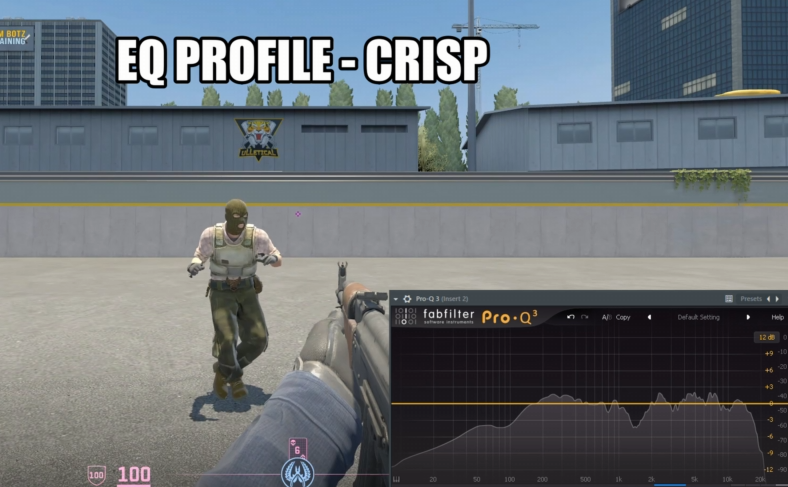
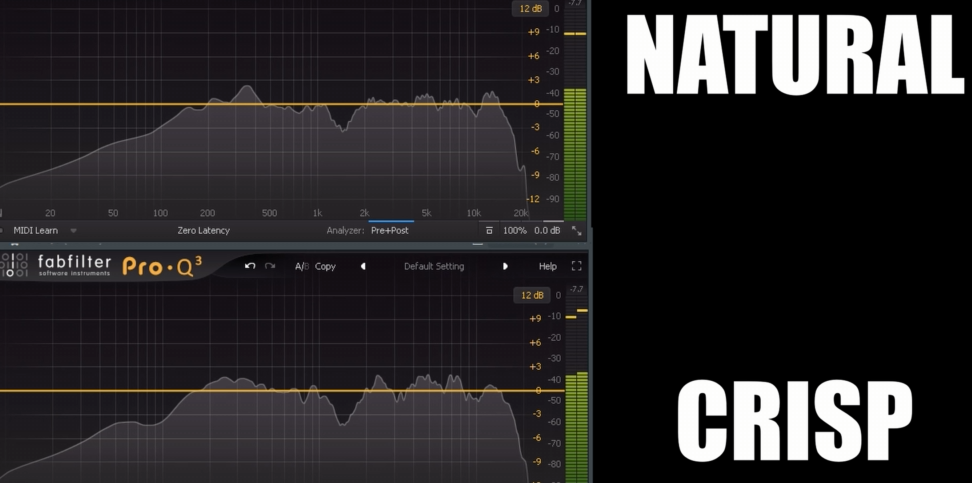
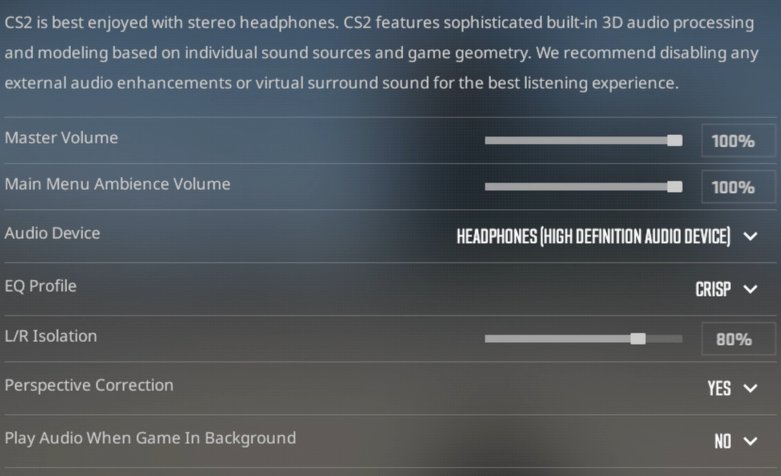
The Sound Profile is the simplest win: it changes the balance of frequencies. Footsteps and gun detail sit heavily in the mids/highs, so a profile that gives those ranges more clarity makes footsteps “pop.” In CS2, most competitive players stick to Crisp or Natural — you can ignore Smooth for competitive play.
Recommendation
- Use Crisp for more clarity on footsteps and gun detail.
- Use Natural if Crisp sounds harsh on your headphones / IEMs.
- Avoid Smooth (it reduces clarity where footsteps live).
2) Left/Right Isolation: the biggest directional advantage
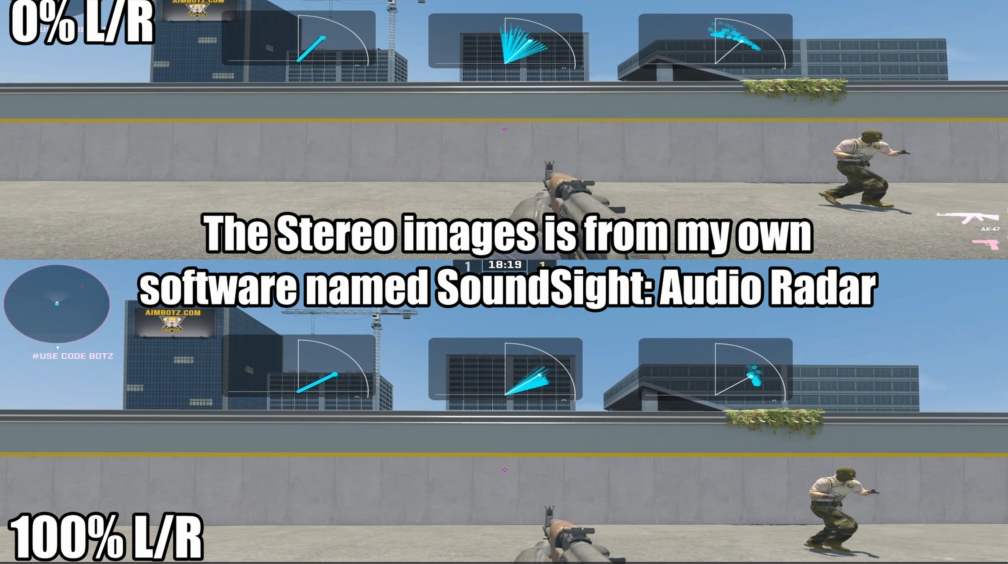
If you want to pinpoint where a footstep came from, this setting matters a lot. At low isolation, the left and right channels bleed into each other — meaning a sound from your left still shows up in your right ear. That makes audio feel “centered,” which slows down your reaction time.
What to set it to
- 0% Isolation: maximum bleed (harder to place direction)
- 100% Isolation: maximum separation (can sound exaggerated/unnatural)
- Sweet spot: 50–80% (most people like ~80%)
3) Perspective Correction: keep it ON (And BEST Audio Settings Overall)
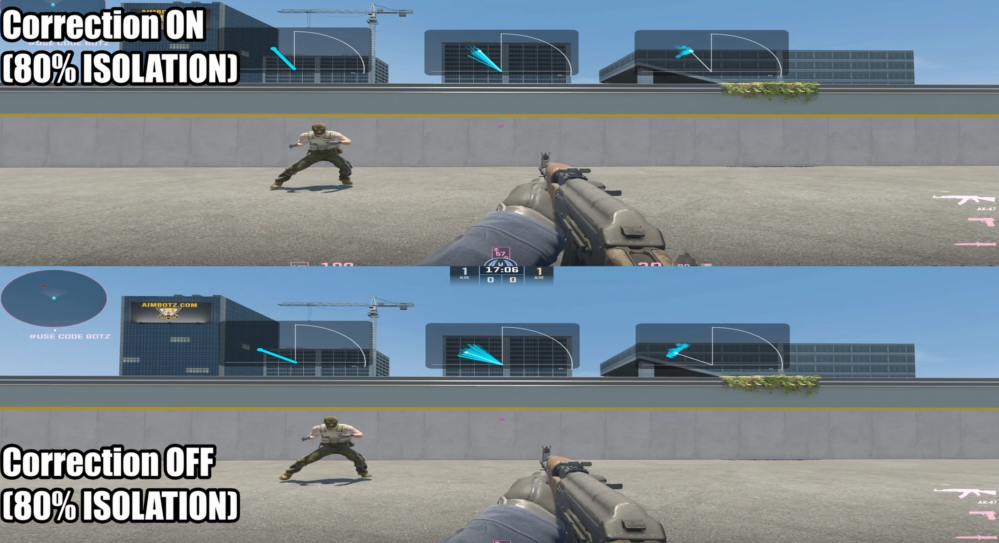
Perspective Correction helps sounds match what you see. When it’s ON, sounds don’t hard-pan fully left/right until the source is actually off-screen. When it’s OFF, sounds near the edges of your screen can pan too aggressively — which can feel misleading.
Recommendation
- Perspective Correction: ON (more consistent with your field of view)
4) Windows Loudness Equalization (optional “OP” mode)
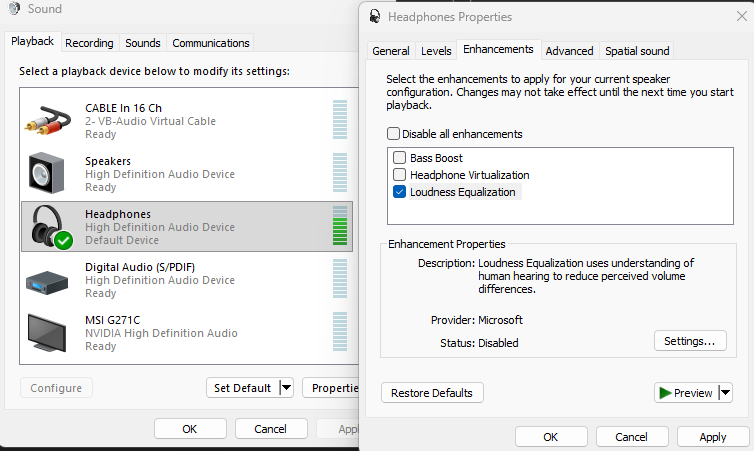
Windows has a setting called Loudness Equalization. It works like a compressor: quiet sounds get boosted up, and very loud sounds get pulled down. That means quiet footsteps can become much easier to hear.
How to enable it (quick path)
- Windows Sound settings → choose your playback device (headphones)
- Device properties → Enhancements
- Enable Loudness Equalization
Extra edge: visual direction cues (optional)
Even with perfect CS2 audio settings, direction can still get confusing in chaotic fights. If you want a “second set of eyes” for audio, a simple visualizer can help confirm left vs right quickly.
SoundSight (visual audio radar)
Shows left/right direction and intensity in a clean overlay. Helpful if you struggle with directional audio, have weaker headphones, or want faster confirmation in clutch moments.
View SoundSightAutoSonic (auto EQ for clarity)
If you want footsteps and detail to stand out more across games, AutoSonic can help generate EQ tweaks based on what you’re hearing, then apply them system-wide.
View AutoSonicFAQ
What’s the single best CS2 audio setting for footsteps?
If you can only change one: set Sound Profile to Crisp. If you can change two: also raise Left/Right Isolation to around 80%.
Is Loudness Equalization “allowed”?
It’s a Windows setting, not a cheat, but it’s very strong. Some competitive environments dislike it because it makes quiet cues much easier to hear. Use it if your goal is maximum audibility; disable it if you want more natural distance perception.
Should I use Crisp if my headphones are already bright?
If Crisp sounds too sharp on your headset/IEMs, switch to Natural. The goal is clarity without fatigue.