
Equalizer APO Not Working After a Windows 11 Update?
If Peace opens and your filters look right but sound exactly the same, check the connection between Equalizer APO and the Windows device that is actually playing audio. A Windows or driver update can change that connection while leaving your presets intact.
Quick setup
- Play a familiar track and identify the output that is actually playing it.
- Open Equalizer APO Device Selector or Configurator. Check that exact playback device, apply and restart if asked.
- On that device in Windows Sound settings, compare Device Default Effects and Off. Test the same filter after each change.
Find the output the game actually uses
- Play a track and open Settings → System → Sound. Note the selected output and confirm you hear that track through it.
- Open Volume mixer while the game is running. Check its output override and any output selected in the game. If the game routes to a different device, switch it to your intended output or attach APO to the device the game uses.
- If your headset has Game and Chat outputs, use Game for the first test. HDMI monitors, USB DACs, Bluetooth outputs, and virtual mixers can all appear separately.
Music changes but the game does not? APO already works somewhere. Recheck the game’s output before reinstalling it.
Reattach Equalizer APO after a Windows or driver update
A Windows update can leave Peace and the preset files in place while breaking audio processing for the device. A driver change can also leave you selected on an older entry with a similar name. Confirm the current output before touching the configuration.
- Open Equalizer APO Configuration Editor from Start. The Peace project documents that opening it can trigger automatic repair. Test the EQ again.
- Still flat? Open Device Selector, called Configurator in older versions. Under playback devices, check the box next to the output you identified in Windows. Apply it and follow the restart prompt.
- If it was already checked, confirm the connector and device name match the current output. Open the troubleshooting options on that entry and test a supported processing mode if a normal repair still fails.
Peace project’s repair instructions · Equalizer APO documentation
Try Device Default Effects and Off on the same output
Go to Settings → System → Sound, choose the active headphones or speakers, and find Audio enhancements. Check the effect on one device at a time.
If the current Settings page has no option, open More sound settings → Playback → your device → Properties. Some drivers expose the control under Enhancements or Advanced. Use the toggle your output actually provides.
Verify APO with a single temporary filter
Back up your config folder before making changes. Play a familiar clip at a comfortable volume using the output above. In Configuration Editor add a temporary low-pass filter around 800 Hz and toggle it using the editor. The filtered version should clearly lose treble. Remove the test filter when done.
- Both music and the game change. You confirmed the audio path. Restore your usual configuration and try your game preset.
- Only music changes. Check the game’s output and any exclusive playback option the game or player uses.
- Configuration Editor changes the sound but Peace does not. Check Peace’s output selection, active preset and the file included in
config.txt. The main configuration needs to load the intended file without a typo or disabled Include. - Neither changes. Go back to the device attachment and enhancements checks, then try the compatibility mode below.
If it still has no effect, test one install mode at a time
In Device Selector or Configurator, select the exact playback entry and open its Troubleshooting options. Note the original Install as setting. The Peace project suggests trying SFX/EFX first on Windows 11, then SFX/MFX if needed. Change one option, follow the restart prompt if shown, and repeat the same filter test. Restore the working mode after comparing.
Reinstall with a copy of your configuration saved if the attachment still cannot be repaired. In DoveSonicEQ, open Settings / Troubleshooting → Can’t hear differences? Troubleshoot for the guided setup and test. Once you hear the change, load the matching game preset and compare it with bypass.
DoveSonicEQ for Windows
Set up your output and load your game EQ in one app
DoveSonicEQ includes guided Equalizer APO troubleshooting, a live EQ graph and presets for games and supported headsets. After you confirm the output responds, load a game preset and compare it with bypass in the same app.
If the device has no active APO processing, resolve that first. The app gives you a guided way to set up and test the Windows audio path.
Get DoveSonicEQ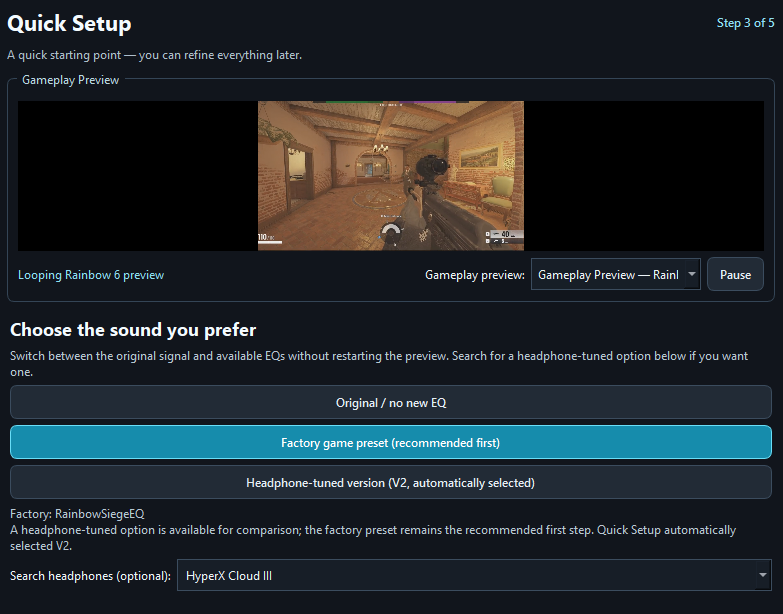
Frequently asked questions
Why did Equalizer APO stop working after Windows updated?
An update can reset the connection between Equalizer APO and an audio driver or change which playback device Windows selects. Your preset can still be present. Verify the output, open Configuration Editor, and check its attachment in Device Selector.
Should Audio enhancements be On or Off for Equalizer APO?
Start with Device Default Effects on the APO playback device. Test Off as a comparison if you are diagnosing distortion or a conflicting effect. If Off stops Equalizer APO from processing, restore Device Default Effects and isolate any optional vendor effects individually.
Peace is on. Why do the sliders do nothing?
Peace edits the Equalizer APO configuration. First verify Equalizer APO itself responds to a filter on the active playback output. Then check that Peace targets that output and that the main configuration loads the Peace file.
Do I need to reinstall Equalizer APO after every update?
Start with Configuration Editor and verify the output in Device Selector. Reinstall only if you still cannot restore processing, and back up the configuration first.