
SteelSeries Nova 7 Apex Legends EQ Settings (Tuned Preset)
Catching rotations in Apex means hearing movement early, and the SteelSeries Nova 7 runs through Sonar software that loves to add its own EQ on top of yours. This guide uses the Nova 7 tuned Apex preset in DoveSonicEQ: the proven Apex mix, corrected for this headset, with Sonar neutralized so the tuning lands clean.
1) Neutralize Sonar first (EQ and spatial)
The most common reason a tuned preset sounds wrong is two EQs running at once. SteelSeries Sonar/GG processing on top of DoveSonicEQ buries the tuned correction under extra shaping, and footsteps smear.
- Turn the Sonar equalizer off or flat for the Nova 7.
- Turn spatial audio off. Apex plus one clean stereo chain gives the clearest rotation reads.
- Check the endpoint: Equalizer APO must be attached to the exact Windows playback device you listen through, or nothing DoveSonicEQ writes will reach your ears.
- One EQ in the chain: DoveSonicEQ does the tuning from here. Everything else stays neutral.
2) Load the Nova 7 tuned Apex preset
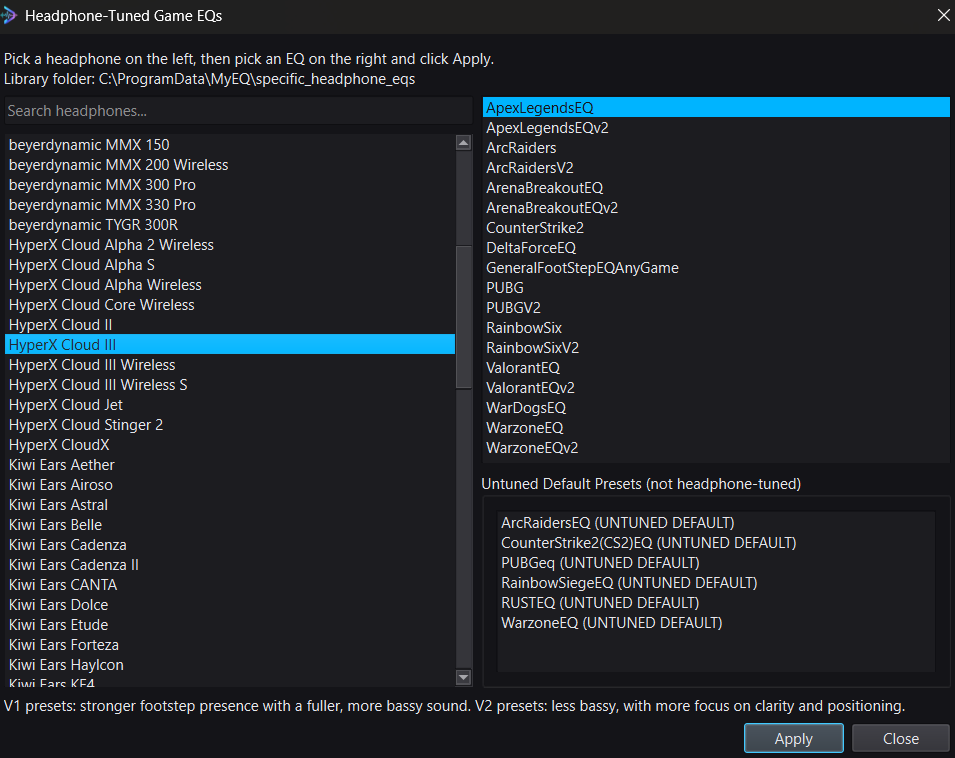
In DoveSonicEQ, open Headphone-Tuned Game EQs, pick SteelSeries Nova 7 on the left, and choose the Apex mix on the right. Two tuned versions exist:
- V1: stronger footstep presence with a fuller sound. Pick this if rotations feel faint at range.
- V2: less bassy, more focus on clarity and positioning. Pick this if close fights turn to mud.
Flip between the tuned preset and Bypass right away. Ability noise and ambient chaos should lean out while rotation steps step forward. If close-range fights feel heavy, V2 is usually the answer.
3) Lift rotations with Loudness Equalization
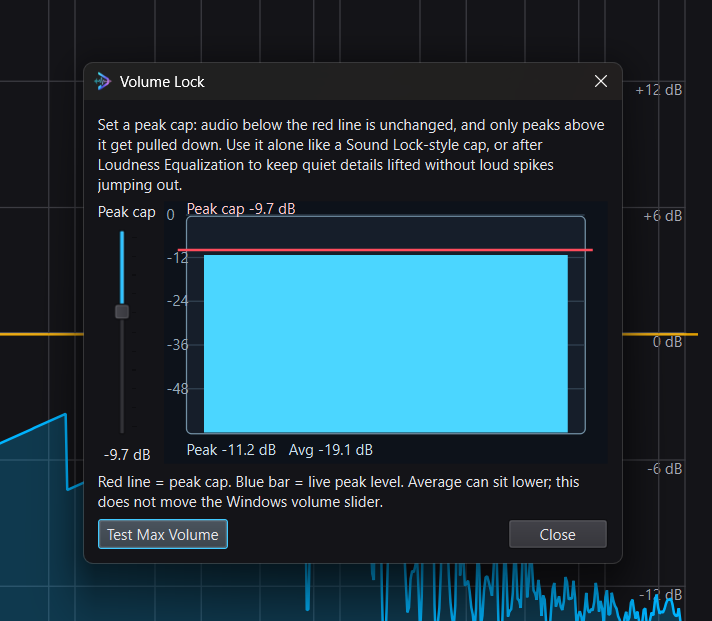
Set Improved Loudness Equalization near 48-50% with Peak Control on, then add Volume Lock only if spikes still bother you. Order: lift, Peak Control, Volume Lock. Apex fights swing from silent looting to full-team chaos, so loudness earns its keep here: raise it until distant rotations surface, then stop before everything feels equally close. Full walkthrough: how to hear footsteps in any game.
4) Save it and prove it
- If your own shots bury steps, add Lower Own Gunfire (V3, strength near 50%). Guide: lower your own gunfire volume.
- Bypass compare the finished setup against untouched sound.
- Save it as one preset: EQ, Nova 7 match, and Loudness Equalization travel together. Swap instantly next launch.
Only have sliders? Convert the preset
If you ever need the tuning inside fixed sliders instead of DoveSonicEQ, download the preset text from EQ Presets, paste it into the EQ converter, and get 10-band slider values. Fixed sliders are approximate, but they beat guessing.
DoveSonicEQ
Nova 7 tuned Apex presets, visual EQ, Loudness Equalization tools, Lower Own Gunfire, and Dove AI help in one Windows app.
View DoveSonicEQSoundSight
If you also want to see rotations, SoundSight draws left/right direction visually while you play.
View SoundSightFAQ
Should I use V1 or V2 on the Nova 7?
Start with V1 for maximum rotation presence at range. Switch to V2 when close fights feel muddy or abilities crowd steps out.
Do I need Sonar running at all?
Only for device settings like ChatMix. Its EQ and spatial processing must stay off or flat while DoveSonicEQ tunes, or you get two EQs stacked and the tuned preset cannot do its job.
Why do I hear no change after applying?
Almost always the endpoint: Equalizer APO must be enabled on the exact playback device you use, with DoveSonicEQ's managed include in place, plus one reboot after enabling. Ask Dove AI to check the chain.