
Hunt: Showdown 1896 Audio Settings: CrySpatial, Stereo and Footsteps
Start with CrySpatial enabled on headphones and keep optional virtual surround off for the first comparison. Crytek recommends CrySpatial for most players using stereo headphones.
Quick setup
- Use stereo headphones and start with CrySpatial on.
- Compare a known route at a doorway, at stairs, and outside a compound.
- Keep volume steady and change a single processing option at a time.
CrySpatial on or off?
CrySpatial is Hunt’s headphone spatial rendering. Crytek recommends leaving it on unless you specifically want to compare a different spatial setup. If you do compare another solution, test it separately and check that front, back, and elevation still make sense.
Test inside and outside a compound
Use a fixed listening spot. Have a teammate repeat a route outside, then walk near a door or stairs. Call the direction before you look. Compare the same surface and pace on both runs so you can attribute any change to the setting. If you hear quiet movement clearly outdoors but struggle indoors, include a second building before settling on an EQ.
Keep direction and masking tests separate
If the cue is loud enough and hard to place, check your spatial setup. If a loud sound covers it, test one EQ or dynamics change. On Windows, SoundSight v2 can provide a visual cue from detected audio. Check the rules for your event or server before using an overlay.
Run a repeatable headphone direction test before trying a new headset or spatial effect.
Check the cue with a door open and closed
Pick one repeatable spot near a door or window. Ask a teammate to walk the same outside route once with the door open and once with it closed. Keep your camera and listener position fixed. If the cue shifts or gets harder to place only when the opening changes, run the test again in another building before changing headset EQ or spatial processing.
SoundSight v2 for Windows
Add a visible cue when a Hunt sound is hard to place
Keep your CrySpatial baseline and use SoundSight v2 to see the direction of detected footsteps and shots. The Windows overlay listens to the game audio and runs its detection on your PC.
Try it with a known teammate route in borderless mode so you can compare the visual cue with the sound and the map.
Get SoundSight v2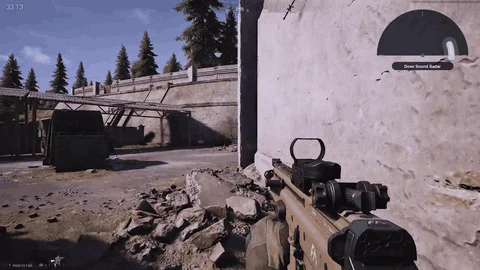
Frequently asked questions
Should I stack CrySpatial with headset surround?
Start with CrySpatial by itself. Test other processing separately so you can judge what it changes.
Should I add lots of treble to hear footsteps?
Try the default mix first. If you test EQ, change one band and keep it only if both direction and important cues stay clear.