
Bluetooth Headphones Sound Muffled When the Mic Turns On in Discord or Games
If game audio gets thin or muffled the moment you join a call, compare the same sound with the headset microphone active and inactive. Start with input and output routing before changing the EQ.
Quick setup
- Play a familiar clip and join a call.
- Switch the call’s input to a laptop or USB mic, keeping the headphones as output.
- If audio clears up, use that input or check whether your hardware supports stereo with the Bluetooth microphone.
Why calls can change how games sound
Some Bluetooth setups change playback quality while the headset mic is in use. Some compatible Windows 11 PCs and Bluetooth LE Audio devices can keep stereo while using the microphone. Compatibility depends on the headphones, Windows version, PC hardware, and driver.
Check Discord and the game separately
Choose your separate microphone as the input in the call app and game. Keep your preferred headphones as output. If game chat still triggers the change, test with it disabled, then select the input there explicitly. A wired or compatible USB wireless connection is another way to compare.
Tune the stable output
Once call audio stays clear, run Footstep Lab again with chat open. If direction is fine and game effects still mask footsteps, try a game EQ preset or use DoveSonicEQ on the active Windows output.
Run a three-state voice chat test
- Play the same clip with Discord closed.
- Join a call and use the Bluetooth headset as both input and output.
- In Discord, select a separate microphone under Voice & Video, keep the headphones selected as output, then replay the clip.
If step three sounds like step one, changing the input is enough for this setup. If it still sounds muffled, close other apps using the mic and check the game’s voice input too. Keep the system volume steady during the comparison.
DoveSonicEQ for Windows
Tune your game audio once voice chat sounds clear
After you fix the Bluetooth connection or switch microphones, DoveSonicEQ gives you game presets, headphone-tuned options for supported models, and bypass comparison. Apply a preset to the playback device you use in matches.
If you still hear footsteps poorly with teammates talking, compare one preset with your voice chat open.
Get DoveSonicEQ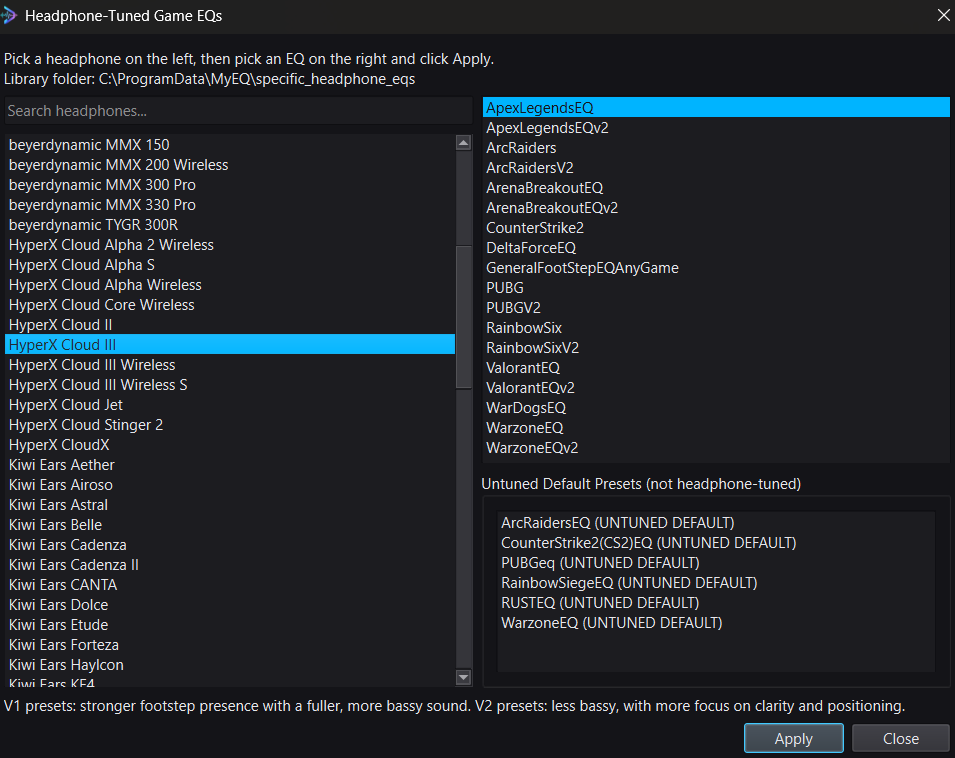
Frequently asked questions
Can an EQ preset restore stereo during a call?
Fix the connection mode and routing first. EQ changes tone and cannot restore stereo channels to a mono signal.
Can I keep my Bluetooth headphones and use another mic?
Yes, if Windows and your call app let you select that microphone as input and the Bluetooth headphones as output. Test both after joining a call.