
Quick start (approx.60 seconds)
- Run CrossSight.exe. The overlay starts immediately and stays on top.
- Open the Crosshair tab to set color, thickness, length, gap, and center dot.
- Turn on Outline crosshair if the crosshair disappears on bright scenes.
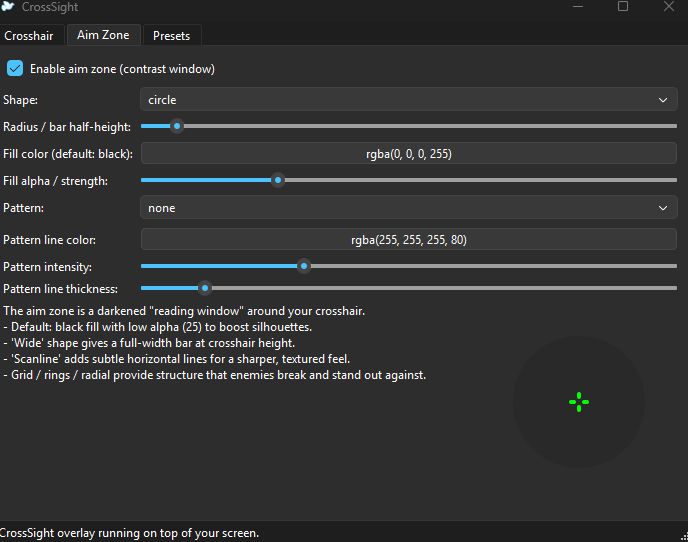
- Open the Aim Zone tab to enable the contrast window around the crosshair.
- Pick a shape: circle, box, diamond, or wide (full-width bar).
- Save your setup in Presets so you can swap per game instantly.
Good to know: CrossSight is a transparent click-through overlay. It does not hook into games or read game memory.
Controls
- Crosshair tab — all crosshair appearance controls (color, thickness, length, gap, dot, outline)
- Aim Zone tab — contrast window (shape, radius, fill strength, pattern style)
- Presets tab — save/load/delete presets (portable JSON files)
Suggested workflow
- Start with a high-contrast crosshair color (cyan/magenta/white).
- Enable Outline if the crosshair blends into the scene.
- Turn on Aim Zone with a subtle black fill (low strength) to boost silhouettes.
- If you like extra “structure”, try patterns:
- Scanline — subtle horizontal lines, sharper feel
- Grid — simple reference lines
- Rings — concentric circles
- Radial — spokes from center
- Save one preset per game (or per monitor/brightness setting).
Presets
- Save preset stores your current Crosshair + Aim Zone settings.
- Load swaps your overlay instantly (great for different games).
- Share presets by sending the preset
.jsonfile (portable).
Aim zone patterns
Aim Zone is a darkened “reading window” around your crosshair. It can be just a tint, or you can layer a light pattern inside it so targets pop more.
- Fill alpha / strength: lower = subtle, higher = stronger contrast
- Pattern intensity: controls how visible the pattern is
- Wide shape: makes a full-width bar at crosshair height (good for tracking in open areas)
Tips
- Exclusive fullscreen: some games can cover overlays. Use borderless windowed if you don’t see CrossSight.
- If your crosshair looks too “thick”, lower thickness first before reducing length.
- For readability, use a bright crosshair + dark outline.
Troubleshooting
- Overlay not visible? Switch the game to borderless windowed and ensure CrossSight is running.
- Crosshair hard to see? Turn on outline and increase outline width slightly.
- Settings didn’t stick? CrossSight saves last-used settings automatically; use presets if you want named configs.
Privacy: CrossSight is local-only. Nothing is uploaded.